Facemoji AI Emoji Keyboard
- 4.7
- Rating
- 100.00M
- Installs
- Free
- Price
 Analysis by App-foxy
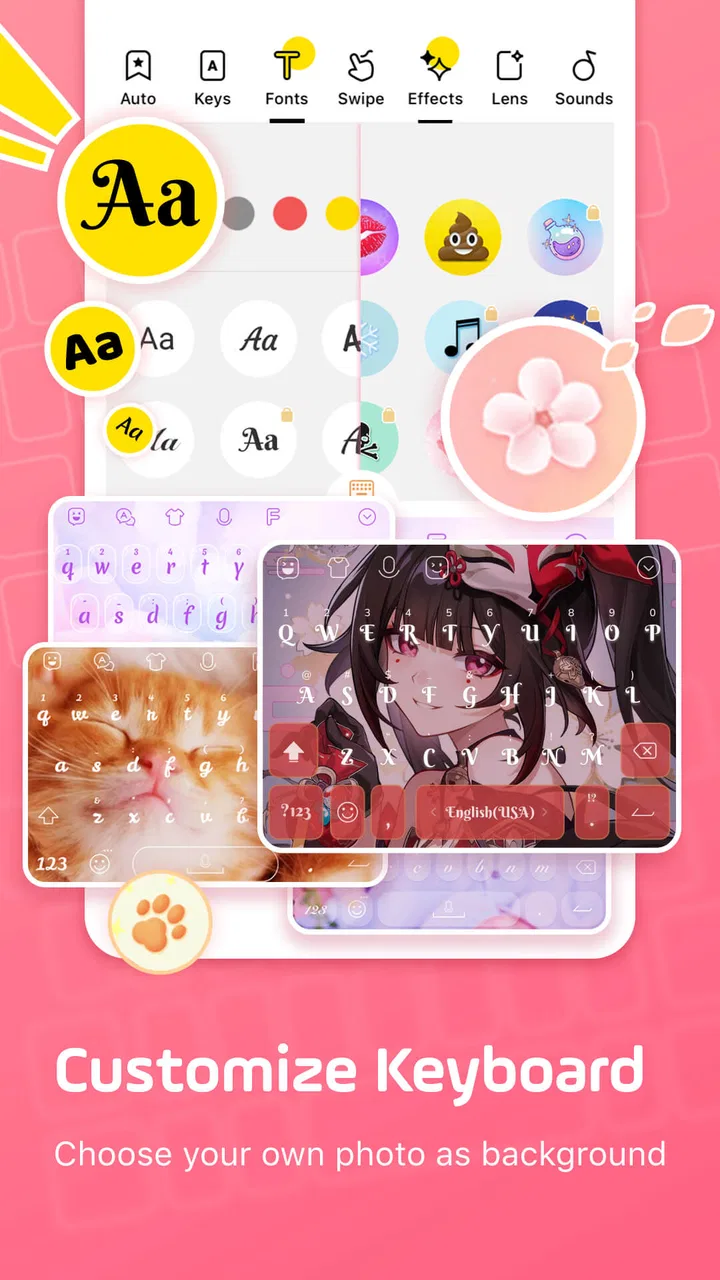
Facemoji AI Emoji Keyboard is the kind of personalization app that looks simple until you start using it in real conversations. I installed it expecting a colorful keyboard with extra emojis, but its appeal is broader: it combines a large collection of emojis, decorative fonts, themes, stickers, and an AI keyboard in one typing tool. That makes it useful for people who want their messages to feel more expressive without switching between several apps.
My experience was positive overall, although the app is not completely friction-free. The amount of visual content can feel overwhelming, and changing a keyboard on a phone always involves a few system-level steps that are easy to overlook. If you mainly want fast, plain typing, the standard keyboard on your phone may remain the better choice. If you enjoy customizing chats, however, this app gives you far more room to experiment.
What makes Facemoji different in everyday use
Facemoji is a free personalization app from Nexileap, and it has grown into a very widely used keyboard rather than a small novelty tool. It has a 4.7 average from around 1.5 million ratings, with over 100 million installs. Those figures suggest that it has become a familiar option for people who want more character in messages, but popularity does not automatically make every part of the experience ideal.
In-Depth Coverage of Facemoji AI Emoji Keyboard
The central idea is convenience. Instead of opening an emoji app, copying a sticker, returning to a chat, and then changing the keyboard to add a decorative font, I can keep most of that activity close to the text field. The result is especially handy in casual messaging, social posts, group conversations, and birthday or celebration messages where ordinary text can feel a little flat.
The app is currently at version 3.6.2.1 and supports Android 6.0 or later. It is free to install, while in-app purchases range from about 49 cents to nearly 30 dollars per item. I would treat the free experience as the starting point rather than assuming every visual option is included. The content rating is Teen, so families should also consider whether the app's creative and social-oriented material fits the intended user.
What I like most is the ability to choose how much personality I want to add. I can keep a relatively ordinary layout for daily typing and use more decorative elements only when they suit the conversation. That flexibility is more useful than having a permanently flashy keyboard that makes every message harder to read.
The first places users tend to get stuck
The most common difficulty is not finding emojis or themes; it is getting the keyboard properly enabled and selected. A downloaded keyboard does not always become the active keyboard automatically. On Android, the relevant controls are in the system keyboard and input settings, and the wording can differ between phone brands. If Facemoji appears installed but tapping a text field still opens the old keyboard, I first check the active input method rather than reinstalling the app.
Another easy-to-miss point is that a keyboard app works inside other apps. If a particular chat application, browser field, or game does not show the expected keyboard, that does not necessarily mean Facemoji is broken. Some text fields behave differently, some apps restrict input choices, and some interfaces replace the normal keyboard with their own controls.
I also found that the visual side can distract from the practical side. A theme may look great in a preview but reduce contrast or make keys less immediately recognizable. I prefer to test a design in a real conversation before committing to it. A keyboard should remain comfortable when I am replying quickly, not only look attractive in a settings screen.
There is a second kind of friction: choice overload. With thousands of emojis, fonts, themes, and stickers available, browsing can take longer than expected. My advice is to start with one theme and a small set of frequently used expressive options. Building a personal routine is faster than repeatedly scrolling through the entire catalog whenever I want to send something.
Setup checks that save time
After installing the app, I would go through setup in a deliberate order. First, I would open Facemoji and follow its keyboard activation instructions. Then I would use the phone's input-method selector to make sure the keyboard is actually chosen. Finally, I would open a simple text field and test ordinary typing before spending time customizing the appearance.
This order matters because it separates activation problems from design problems. If basic typing works, I know the keyboard is connected correctly and can investigate themes, stickers, fonts, or AI-related tools separately. If basic typing does not work, changing the theme will not solve the underlying issue.
It is also worth checking the phone's language and keyboard settings. People who switch between languages may need to confirm how language changes are handled on their device. A keyboard that feels perfect in one language can be less convenient when moving between languages, especially if the layout or prediction behavior is different from what I normally use.
I recommend keeping the first setup conservative. Choose a readable theme, test the emoji panel, and send a few messages before exploring the more decorative options. This makes it easier to notice whether a problem comes from the app, the phone, or a specific customization choice.
For anyone concerned about keyboard privacy, I would not skip the system screens simply because the setup feels routine. A keyboard is a direct way of entering text, so I personally review the explanations and settings shown during activation and only enable what I understand. That is not a criticism unique to Facemoji; it is a sensible habit with any third-party keyboard.
You May Also Like

 AliExpress - Shopping App
AliExpress Makes Global Shopping Feel Personal, but Shoppers Bear the Risk
AliExpress turns a global marketplace into a pocket-sized discovery engine. Its reach is useful, its shopping loop compelling, and its trade-offs easy to miss.

 Lords Mobile: Kingdom Wars
Lords Mobile Is a Kingdom-Building Routine, Not a Quick Match
A case-by-case verdict on the building, battles, device demands, and social commitments that make Lords Mobile rewarding for some players and exhausting for others.

 PDF Scanner app - TapScanner
TapScanner Makes Paperwork Easier to Capture, Check, and Share
TapScanner makes scanning with a phone feel less like a rescue operation and more like a dependable step in getting work done. Its capture tools are useful, though not flawless.

 Block Blast!
Block Blast! Shows How Much a Puzzle Game Can Leave Out
A quiet grid game shows why puzzle players increasingly value instant clarity, repeatable skill and low-pressure play—and where the genre still needs to catch up.

 Family Space
Family Space Review: A Shared Routine That Makes Family Life Easier
A parenting app earns its place not by adding more noise, but by making everyday coordination easier. Family Space gets that balance mostly right.

 1Weather Forecasts & Radar
1Weather Forecasts & Radar Makes the Daily Check Worthwhile
A good forecast does more than predict rain. This week's pick turns changing conditions into a clear, practical reason to check before you step outside.
More From Our News Desk
View All News


A practical workflow for messages and social posts
My favorite way to use Facemoji is as a two-level tool. I keep a comfortable everyday theme for normal conversations, then use stickers, unusual fonts, or more expressive emoji combinations when the message calls for them. This avoids the common mistake of making every sentence visually busy.
A realistic example is planning a birthday message in a family group. I can write the information normally so the details remain clear, then add a decorative font to a short greeting and finish with a relevant sticker or emoji. The important part is keeping the actual plans in ordinary text. Decorative elements work best as emphasis, not as a substitute for readable information.
For social posts, I find decorative fonts more useful when applied to a short heading, caption opening, or call to action rather than an entire paragraph. Long blocks of stylized text can be tiring to read and may display differently across devices. A short visual accent gives the post personality without making it difficult for someone else to understand.
The AI keyboard is potentially useful when I know what I want to say but cannot find the right tone quickly. I would use it as a drafting aid, not as an automatic replacement for my own wording. Before sending anything, I would check names, dates, jokes, and emotional nuance. A generated suggestion can sound polished while still being unsuitable for a particular friend or group.
One helpful habit is to separate creation from selection. I first write the message, then decide whether an emoji, font, theme, or sticker genuinely improves it. This prevents the available extras from determining what I say. Facemoji is strongest when it supports the conversation rather than becoming the conversation.
Recovering when the workflow breaks
If the keyboard suddenly disappears, I would begin with the simplest checks: tap another text field, open the system keyboard selector, and confirm that Facemoji remains enabled. If the issue appears only in one app, I would compare it with a different text field. That quick comparison often reveals whether the problem is local to one app rather than a general keyboard failure.
If typing works but a particular emoji, sticker, or font does not appear as expected, I would return to plain text and test the feature separately. This helps identify whether the issue is with the selected content, the receiving app, or the keyboard itself. Some apps may not render decorative characters consistently, so a design that looks correct in one conversation may look different elsewhere.
When the interface feels slow or cluttered, I would reduce the number of active customizations instead of immediately deleting the app. Returning to a simpler theme can improve readability and make it easier to find the controls I actually use. I also prefer to close and reopen the affected app before making larger changes, since temporary interface glitches can look like permanent configuration problems.
If a recent change causes trouble, I would undo one change at a time. For example, I might switch back to a basic theme, test normal typing, and then reintroduce a font or sticker feature. This is more reliable than changing several settings at once, because it identifies the exact step that created the friction.
Reinstalling should be a later option, not the first response. A reinstall can remove local preferences or require setup again, while the original issue may have been an inactive input method or a single app refusing the keyboard. I would only take that step after checking the system keyboard selection and testing more than one text field.
When Facemoji is not the real cause
It is tempting to blame the keyboard whenever typing feels unusual, but the phone or receiving app may be responsible. A messaging app can have its own layout quirks, a browser field may behave differently from a chat box, and a device update can alter where input settings are located. Comparing Facemoji with the phone's default keyboard in the same text field is a useful diagnostic step.
Connectivity can also affect parts of the experience that rely on loading content, while ordinary typing may continue normally. If the keyboard opens but a collection takes time to appear, I would not assume that the entire installation is faulty. I would test basic text entry first and then try the content section again later.
Display size and accessibility settings can change how comfortable a theme feels. A font or keyboard design that looks balanced on one screen may feel cramped on another. If keys are difficult to distinguish, I would prioritize contrast and spacing over appearance. Personalization is only valuable when it remains usable during quick, one-handed replies.
There is also a social compatibility issue. Stickers and decorative fonts may work beautifully in one service but appear as ordinary characters, substitute symbols, or less attractive text elsewhere. When the recipient needs guaranteed clarity, I would use standard text and familiar emoji instead of relying on a heavily stylized message.
Who should use it, and who should skip it
I think Facemoji is a strong fit for people who regularly express themselves through emoji, stickers, themed layouts, and playful text. It is also useful for anyone who wants one place to experiment with chat decoration rather than collecting separate customization tools. Teen users and adults who post frequently or enjoy changing their phone's visual style will probably get the most from it.
I would be more cautious if your priority is the fastest possible typing, a minimal interface, or a keyboard that stays visually unchanged. The standard keyboard may be better for focused work, long emails, password entry, or situations where predictability matters more than creative options. Facemoji can do everyday typing, but its main reason to exist is expression.
It may also be the wrong choice if you dislike browsing through large content collections or do not want to spend time adjusting a theme. The free entry point is attractive, but the presence of optional in-app purchases means that users should decide for themselves whether extra items are worth paying for. I would use the free tools first and only consider purchases after identifying a feature I genuinely use.
Compared with a typical default keyboard, Facemoji offers much more visual variety and chat-focused decoration. Compared with a dedicated sticker or emoji app, it is more immediate because the tools sit alongside typing. The trade-off is that a specialized keyboard can feel busier and may require more setup than a simple copy-and-paste app. For me, the integrated workflow wins when I customize messages often; otherwise, a standard keyboard plus occasional stickers may be simpler.
My practical verdict after using it
Facemoji AI Emoji Keyboard succeeds because it turns ordinary typing into a more flexible creative activity. Its best qualities are not just the number of visual choices, but the way those choices can be used at the moment I am writing. A readable theme for daily use, a decorative font for emphasis, and a sticker for a specific occasion can all fit into one workflow.
The setup deserves patience. If the keyboard is not selected at the system level, the app can appear ineffective even though the installation is fine. If a feature behaves differently in one app, testing another text field can prevent unnecessary troubleshooting. These small checks make the experience much smoother and are more useful than repeatedly changing themes or reinstalling.
I would recommend trying it if you want your chats to feel more personal and you are comfortable spending a little time choosing what works for you. I would skip it if you want a quiet, highly focused typing tool with no visual extras. For my use, the app is most successful when I treat it as a creative layer over a dependable keyboard routine, not as something that should decorate every message.
My bottom line: Facemoji is a capable free personalization keyboard with enough variety for casual messaging, social posts, and playful conversations, but its value depends on whether you will actually use those choices. Start with basic activation, test ordinary typing, choose readability first, and add the expressive features gradually. That approach gives you the fun side of the app without letting customization get in the way of communication.
FAQs for Facemoji AI Emoji Keyboard
01What unique features does the Facemoji AI Emoji Keyboard offer?
Facemoji AI Emoji Keyboard offers a variety of unique features such as AI-generated emoji predictions, personalized themes, and a vast selection of GIFs and stickers. The app also supports multiple languages and provides custom keyboard layouts, making it versatile for users who want a personalized typing experience.
02Is Facemoji AI Emoji Keyboard safe to use with personal data?
Facemoji AI Emoji Keyboard ensures user privacy by not collecting personal data without consent. While it requires certain permissions to function optimally, such as access to your contacts and messages for better suggestions, users have control over what they share and can adjust settings accordingly.
03Does the Facemoji AI Emoji Keyboard support multiple languages?
Yes, Facemoji AI Emoji Keyboard supports multiple languages, making it a convenient choice for bilingual or multilingual users. It offers seamless switching between languages and provides accurate auto-corrections and suggestions, enhancing the typing experience across different languages.
04Can I customize the appearance of my keyboard with Facemoji AI Emoji Keyboard?
Absolutely! Facemoji AI Emoji Keyboard allows users to customize their keyboard's appearance extensively. You can choose from a variety of themes, colors, and fonts, or even create your own design. This feature enables users to personalize their keyboard to match their style and preferences.
05Are there in-app purchases in Facemoji AI Emoji Keyboard?
Facemoji AI Emoji Keyboard is free to download, but it offers in-app purchases for additional features and themes. These purchases are optional and designed to enhance the user experience by providing exclusive content and customization options for those who want more than the basic offerings.
Pros
- Highly customizable keyboard themes.
- Wide variety of emojis and stickers.
- Supports multiple languages easily.
- Smooth and intuitive user interface.
- Regular updates with new features.
Cons
- May consume more battery than standard keyboards.
- Occasional lag on older devices.
- Some features require in-app purchases.
- Ads can be intrusive at times.
- Limited customer support options.

Facemoji AI Emoji Keyboard
Gallery